Qoliber_Gpsr – Configuration
This guide provides instructions for configuring the Qoliber_Gpsr module, which helps display manufacturer details on product pages—supporting compliance with product safety labeling standards.
Initial configuration
The module is disabled by default and must be manually enabled in the Admin Panel.
Accessing the Configuration
To configure the module, go to:
Admin Panel > Stores > Configuration > Qoliber > GPSR Settings
Configuration Options
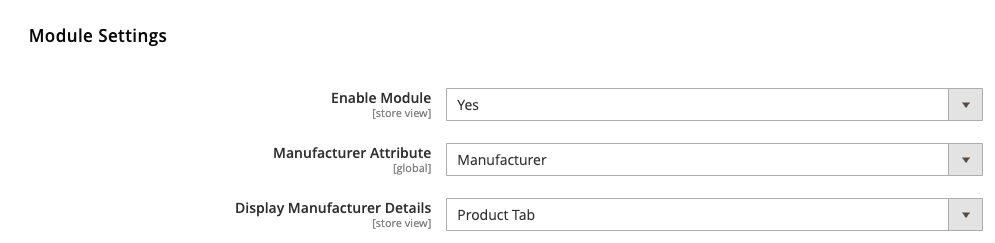
1. Enable Module
- Path:
qoliber_gpsr/general/enabled - Description: Enables or disables the Qoliber_Gpsr module.
- Default:
No
2. Manufacturer Attribute
- Path:
qoliber_gpsr/general/manufacturer_attribute - Description: Selects the product attribute used to define the manufacturer (e.g.,
Manufacturer). - Scope: Global
3. Display Manufacturer Details
- Path:
qoliber_gpsr/general/display_mode - Description: Sets where the manufacturer details are displayed on the product page.
- Options:
Product Tab– Shown in a dedicated tab.Below Description– Displayed below the main product description (theme-dependent).
4. Section Title
- Path:
qoliber_gpsr/general/section_title - Description: Controls the heading shown above all manufacturer details on the product page.
- Default:
Manufacturer Details - Scope: Store View
5. Contact Section Title
- Path:
qoliber_gpsr/general/contact_section_title - Description: Label displayed before the manufacturer's contact information.
- Default:
Contact Information: - Scope: Store View
6. Representative Section Title
- Path:
qoliber_gpsr/general/representative_section_title - Description: Label displayed before the authorized representative information.
- Default:
Authorized Representative: - Scope: Store View
7. Attachments Section Title
- Path:
qoliber_gpsr/general/attachments_section_title - Description: Title shown above manufacturer attachments on the product page.
- Default:
Manufacturer Attachments - Scope: Store View
Recommended Module
To attach compliance documents like declarations or manuals to product pages, we recommend using the Qoliber_ProductAttachments extension alongside this module.
Support
For questions or assistance, contact our support team at [email protected].